

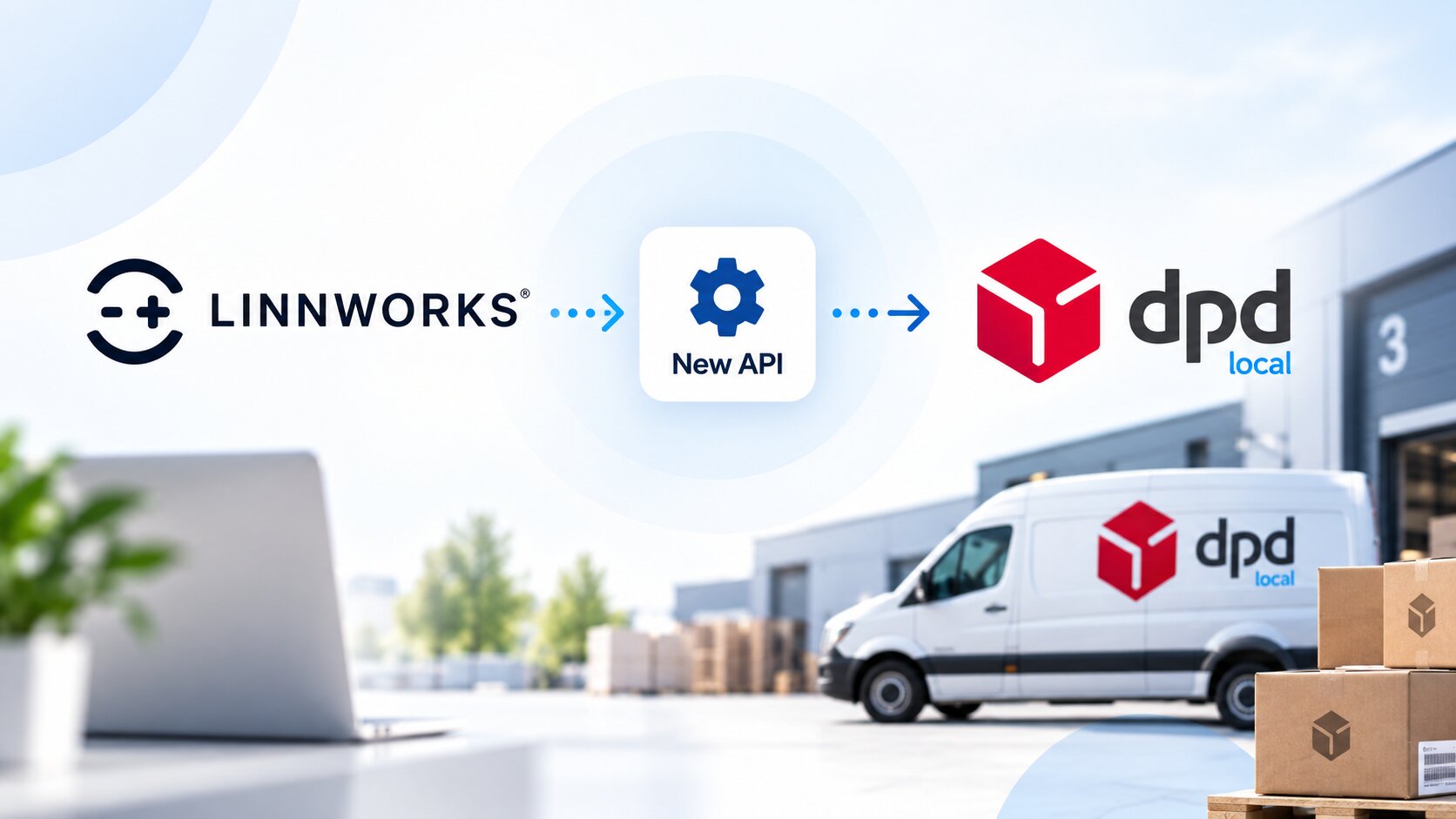
Linnworks DPD Local Integration Is Changing
Linnworks DPD Local Integration Is Changing: What UK Sellers Should Do Now
DPD Local has introduced a new portal and API connection, and Linnworks is encouraging users of the existing DPD Local integration to begin migrating to the new connection.
There is currently no confirmed end-of-life date for the old DPD Local connection. However, Linnworks recommends starting the migration early so businesses have enough time to configure, test and validate the new integration before relying on it for day-to-day fulfilment.
What is changing?
DPD has developed a new portal and API connection for DPD Local. According to Linnworks, the existing API that powers the current DPD Local integration will no longer receive new functionality or ongoing updates.
Future functionality — including future developments relating to international shipping — is expected to be developed and maintained through the new DPD Local portal and API.
As a result, Linnworks customers currently using DPD Local should begin planning their move to the (New) DPD Local integration.
Is there a migration deadline?
At the time of writing, Linnworks states that there is no confirmed end-of-life date for the existing DPD Local connection.
That does not mean businesses should wait.
Linnworks is actively encouraging customers to start the migration process early so the new connection can be properly configured and tested before it becomes operationally critical.
What should Linnworks users do?
1. Obtain access to the new DPD Local portal
Businesses may need to contact their DPD account manager or DPD Sales Support to obtain administrator credentials for the new DPD Local portal.
Once access is available, the administrator can enable API access. An email verification step is required before API credentials can be generated.
2. Generate your new API credentials
The new DPD Local portal allows administrators to generate API credentials, including a Live Key and Secret.
It is important to securely record the secret when it is generated, because Linnworks' guidance notes that the secret is displayed only once.
3. Add the (New) DPD Local integration in Linnworks
Once the required credentials are available, the new DPD Local integration can be added to the Linnworks account.
Businesses should also review any integration-level configuration, shipment references and export information relevant to their fulfilment workflow.
4. Migrate your existing shipping services
One of the most important parts of the process is making sure your existing Linnworks postal services are correctly linked to the new DPD Local integration.
Linnworks recommends removing the applicable services from the old DPD Local integration, adding the corresponding services to the new integration and then linking the existing Linnworks postal services.
Reusing existing postal services can be particularly important for businesses with established order-processing workflows and automation.
5. Check your service settings
Each shipping service should be reviewed after migration. Depending on your operation, this may include settings such as:
- Extended Liability
- Customs Value configuration
- Shipment references
- Export information
- International shipping requirements
If Extended Liability is enabled for a service, Linnworks also highlights the importance of having the appropriate extended properties configured.
6. Don't forget printer configuration
A carrier connection can appear correctly configured but still cause fulfilment disruption if label printing has not been tested.
Linnworks recommends reviewing the Printer Config settings for the new integration and confirming that the correct default or user printer and template are selected.
7. Review customs and property mappings
This step is particularly important for businesses shipping internationally.
Linnworks specifically recommends reviewing properties including:
Confirm product origin data maps correctly.
Verify commodity or tariff code mappings.
Check customs descriptions are populated correctly.
Validate applicable IOSS information and mappings.
Review custom properties used by shipping workflows.
Confirm SKU-level shipping data is correctly mapped.
Why does this matter for UK eCommerce businesses?
Order fulfilment
Incorrect service configuration could interrupt shipping label generation and order processing.
International shipping
Customs and product information must continue flowing correctly to DPD.
Automation
Existing postal services, rules and automated workflows should be checked after migration.
Our recommendation: migrate before it becomes urgent
Businesses often postpone carrier migrations while the existing integration continues to work. However, for busy multi-channel operations this can create unnecessary risk.
We recommend treating the new DPD Local connection as a planned operational migration rather than waiting for an eventual retirement deadline.
Configure the new connection, migrate the relevant services, review mappings and printers, and process controlled test shipments before making the new integration part of your normal fulfilment workflow.
A practical migration checklist
- Confirm whether your Linnworks account currently uses DPD Local.
- Request administrator access to the new DPD Local portal.
- Enable API access and complete email verification.
- Generate the required Live API credentials.
- Add the (New) DPD Local integration in Linnworks.
- Configure shipment references and export settings where required.
- Add the appropriate DPD Local services.
- Link your existing Linnworks postal services.
- Review service-level settings.
- Check printer and label-template configuration.
- Review Country of Origin, HS Code, Description and IOSS mappings.
- Review any Rules Engine workflows connected to shipping services.
- Run test orders and generate test labels.
- Test domestic and international scenarios relevant to your business.
- Confirm the workflow before relying on the new connection for live orders.
Every Linnworks configuration is different. Businesses using customised Rules Engine setups, extended properties, multiple warehouses or international shipping should review their full workflow rather than treating the change as simply replacing API credentials.
Need help migrating DPD Local in Linnworks?
Linnpoint provides end-to-end Linnworks support for UK eCommerce businesses, including shipping integrations, order workflows, inventory management, Rules Engine, marketplace integrations and ongoing Linnworks management.
Our team can help review your existing DPD Local setup, configure the new integration, map services and properties, verify printing and test the workflow before you switch.
Speak to a Linnworks Expert →Linnworks Support Centre – “Shipping - DPD Local migration to (New) DPD Local” and “Shipping - (New) DPD Local: Accessing the new DPD Portal”.
Information reviewed September 2026. Linnpoint recommends checking the latest Linnworks and DPD Local documentation before making changes to a live shipping environment.

Author